Send your first invoice
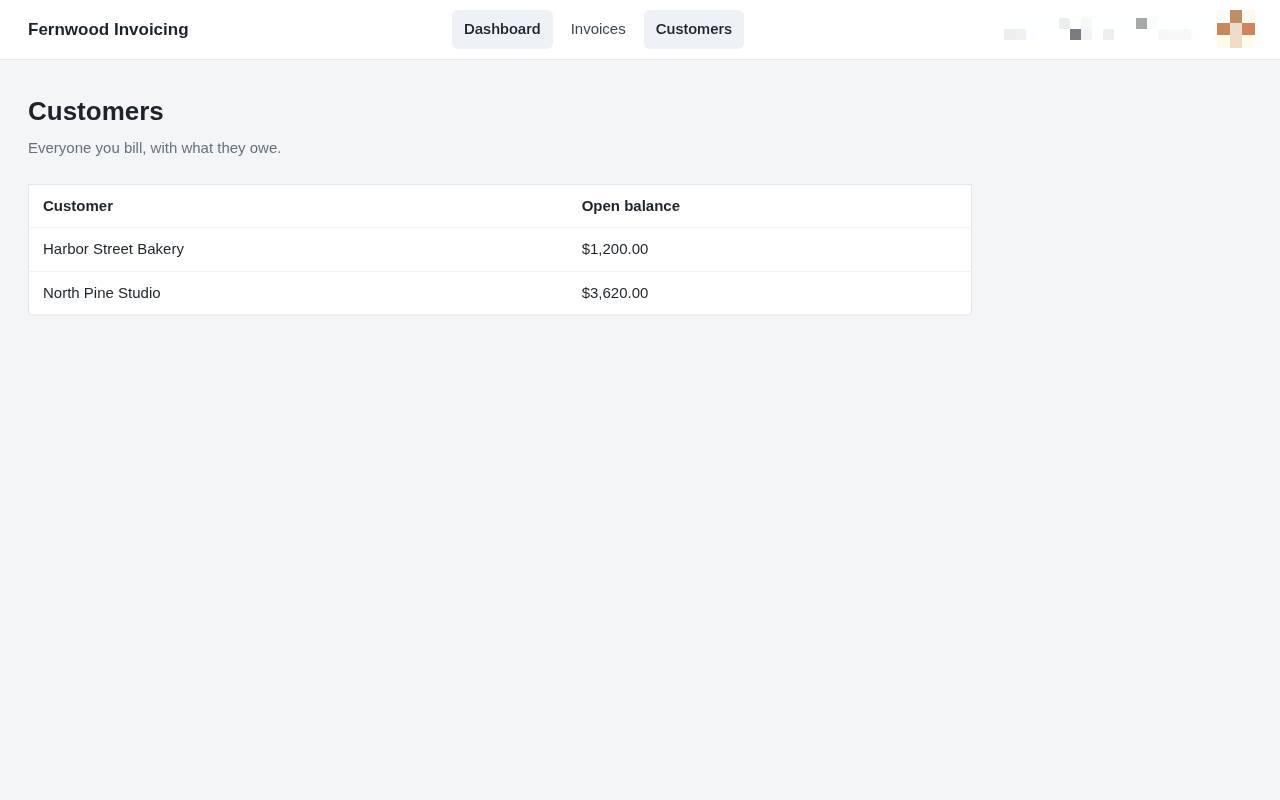
1.View your customer list
Select Customers to see a list of everyone you bill and their current outstanding balances.
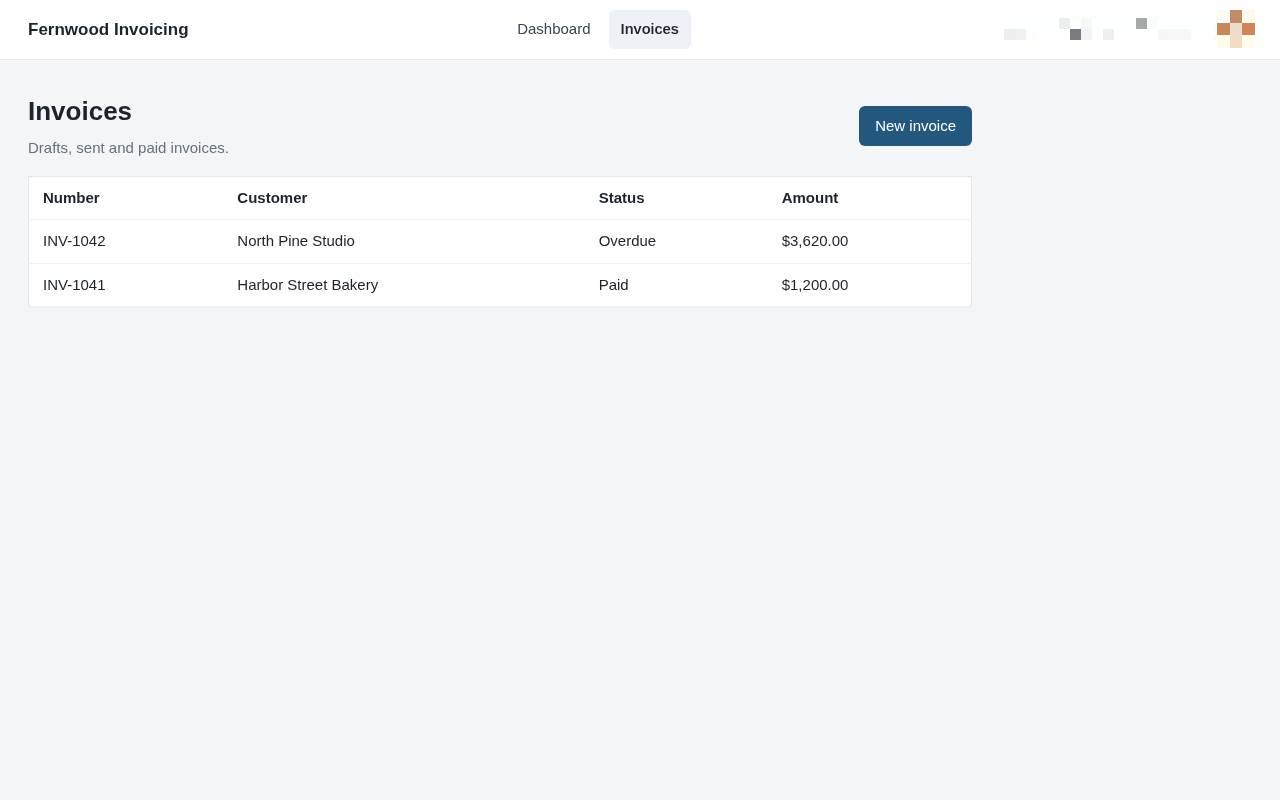
2.View your invoices
Select Invoices to see a list of all your current drafts, sent, and paid invoices.
3.Start a new invoice
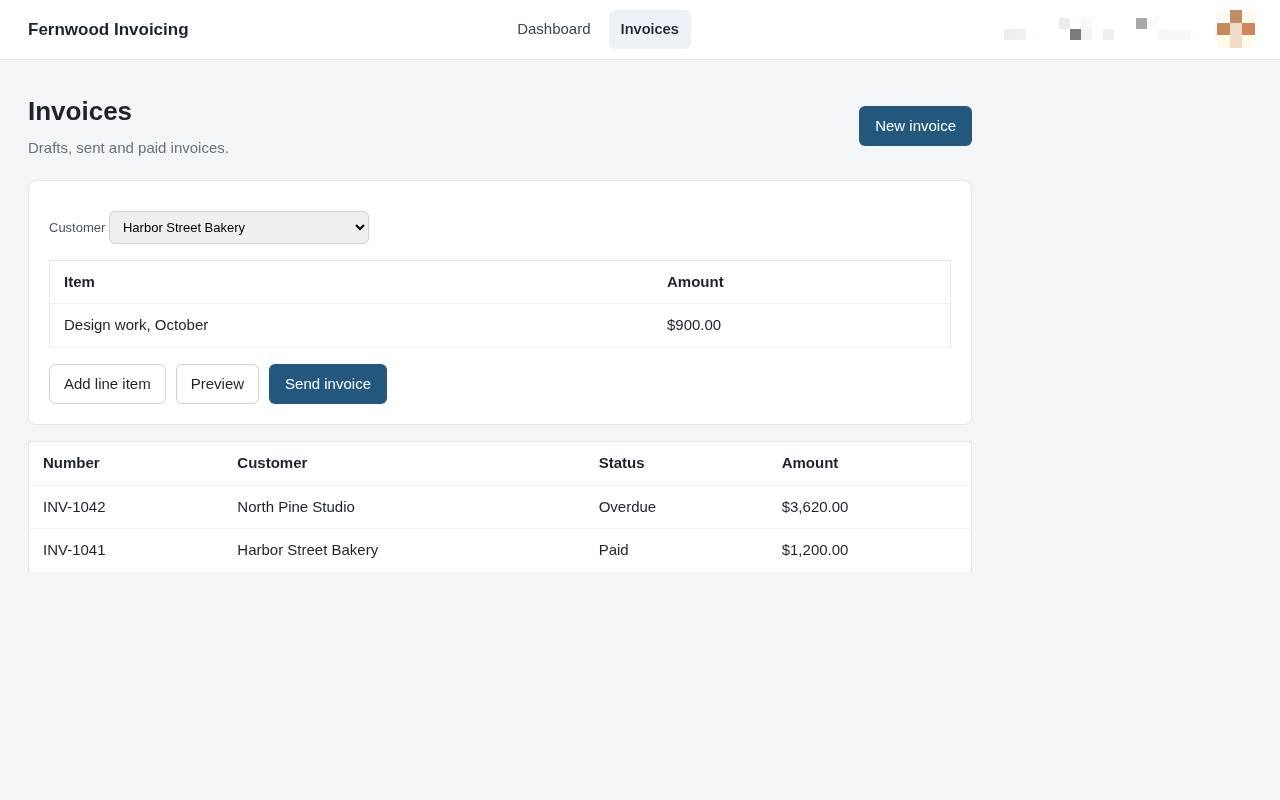
Select New invoice to open the draft editor.
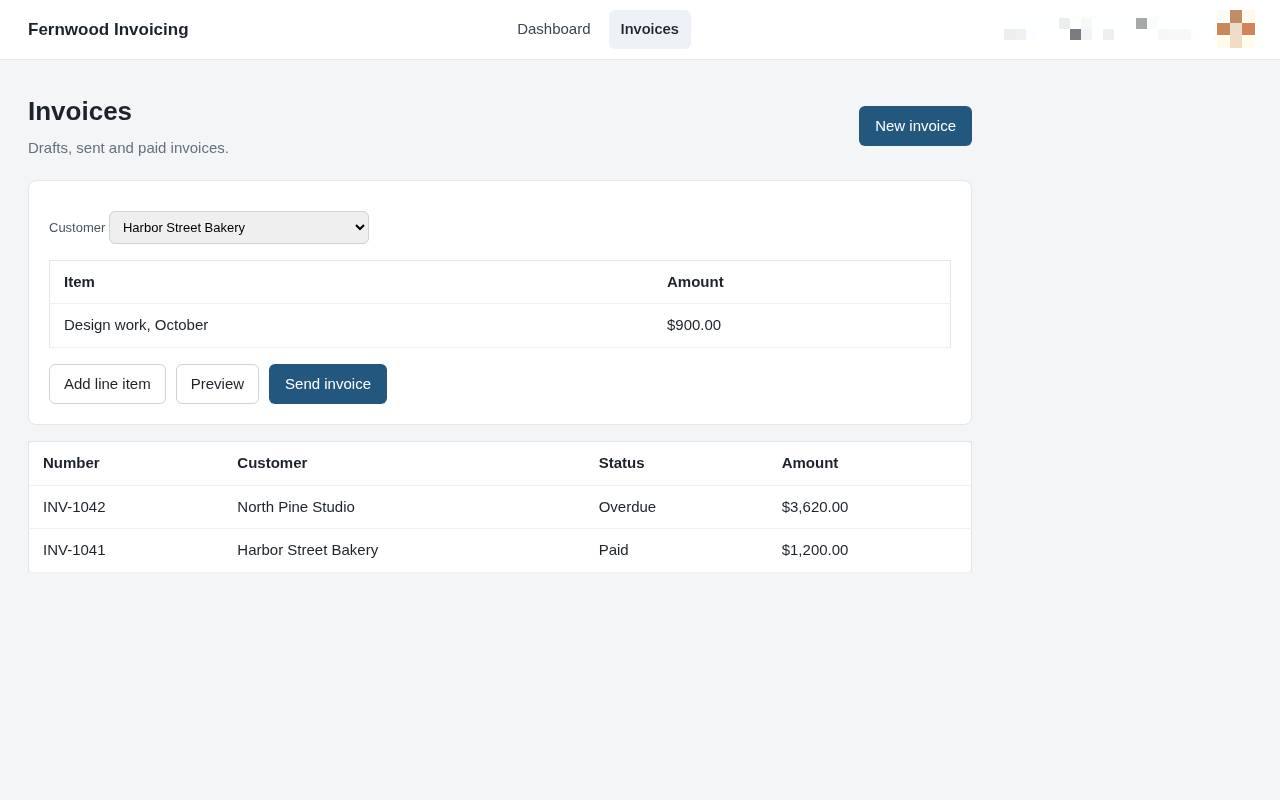
4.Add line items
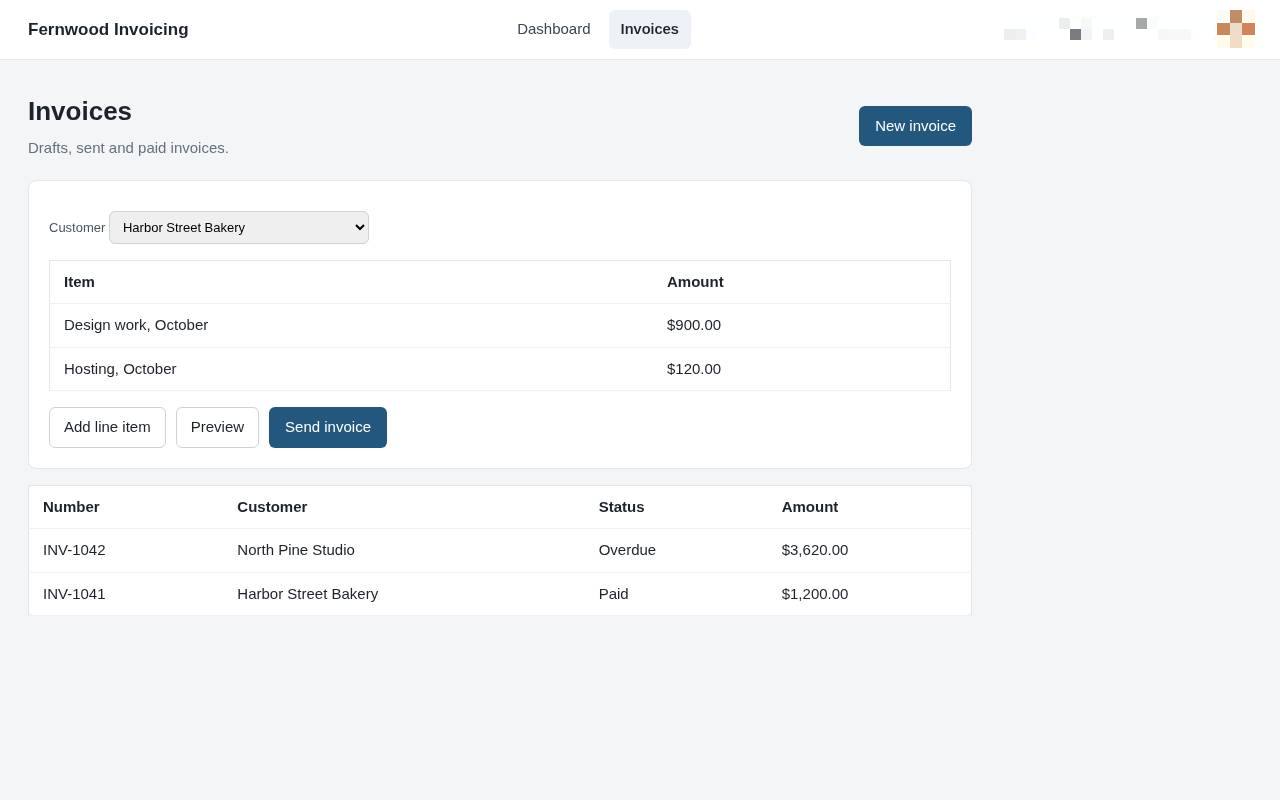
Select Add line item to include additional services or products on your invoice. A new row appears for you to enter the item name and cost.
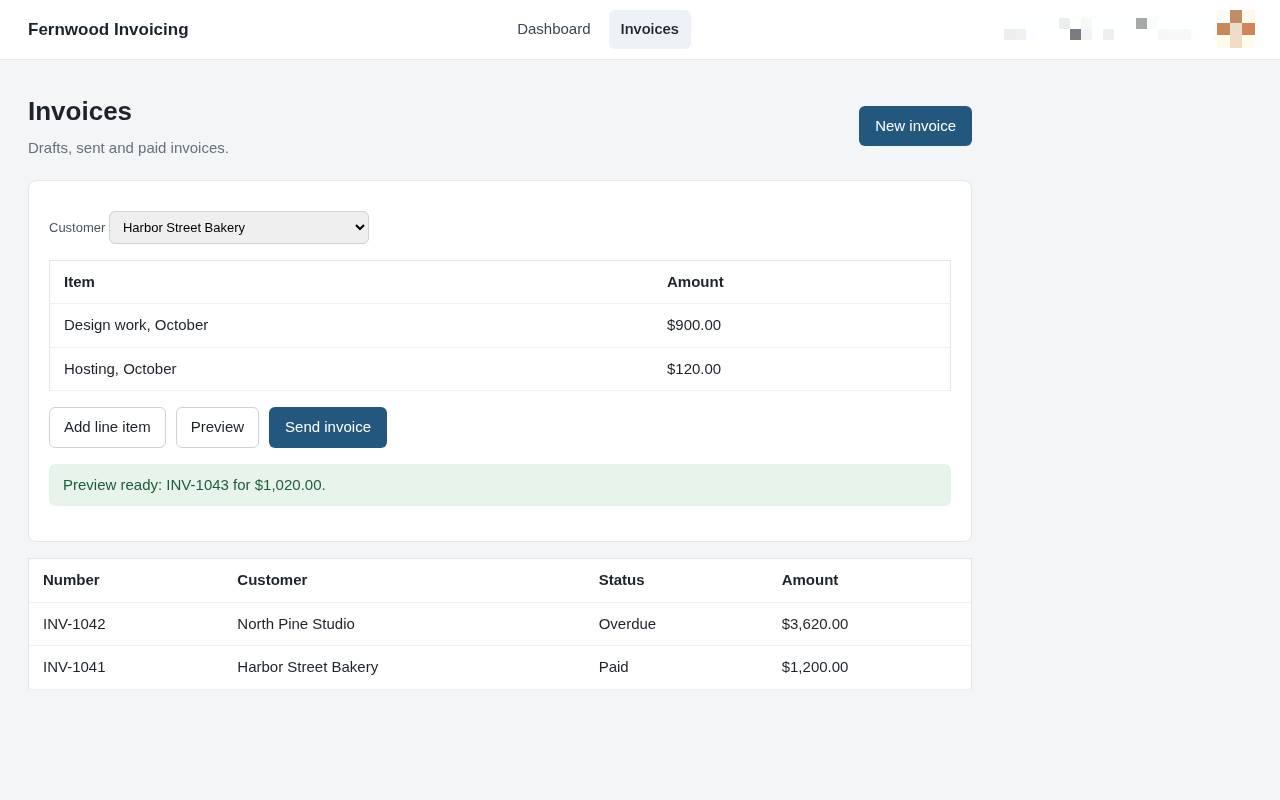
5.Preview your invoice
Select Preview to view your invoice as the customer will see it.
6.Send the invoice
Choose Send invoice. A message confirms the invoice was sent to your customer.