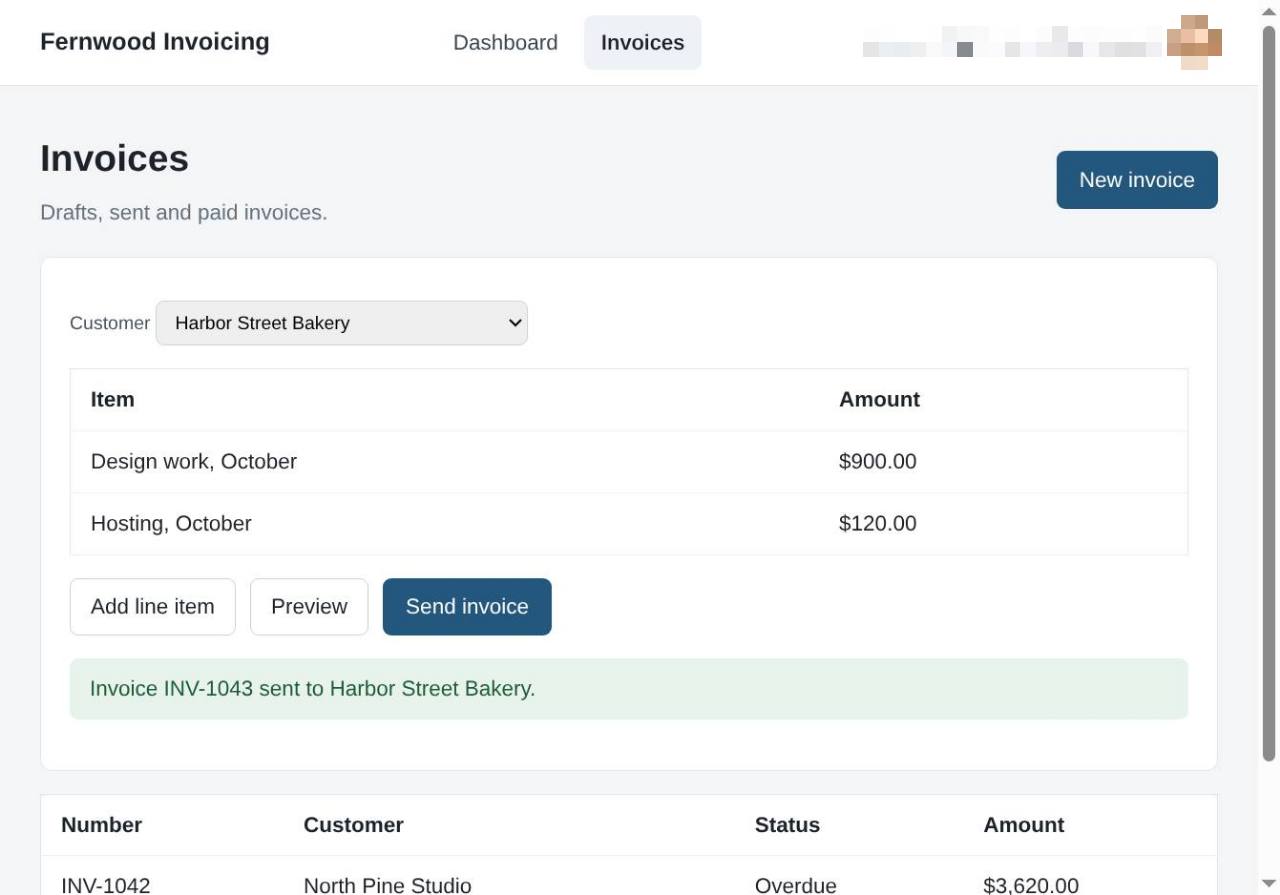
Send your first invoice
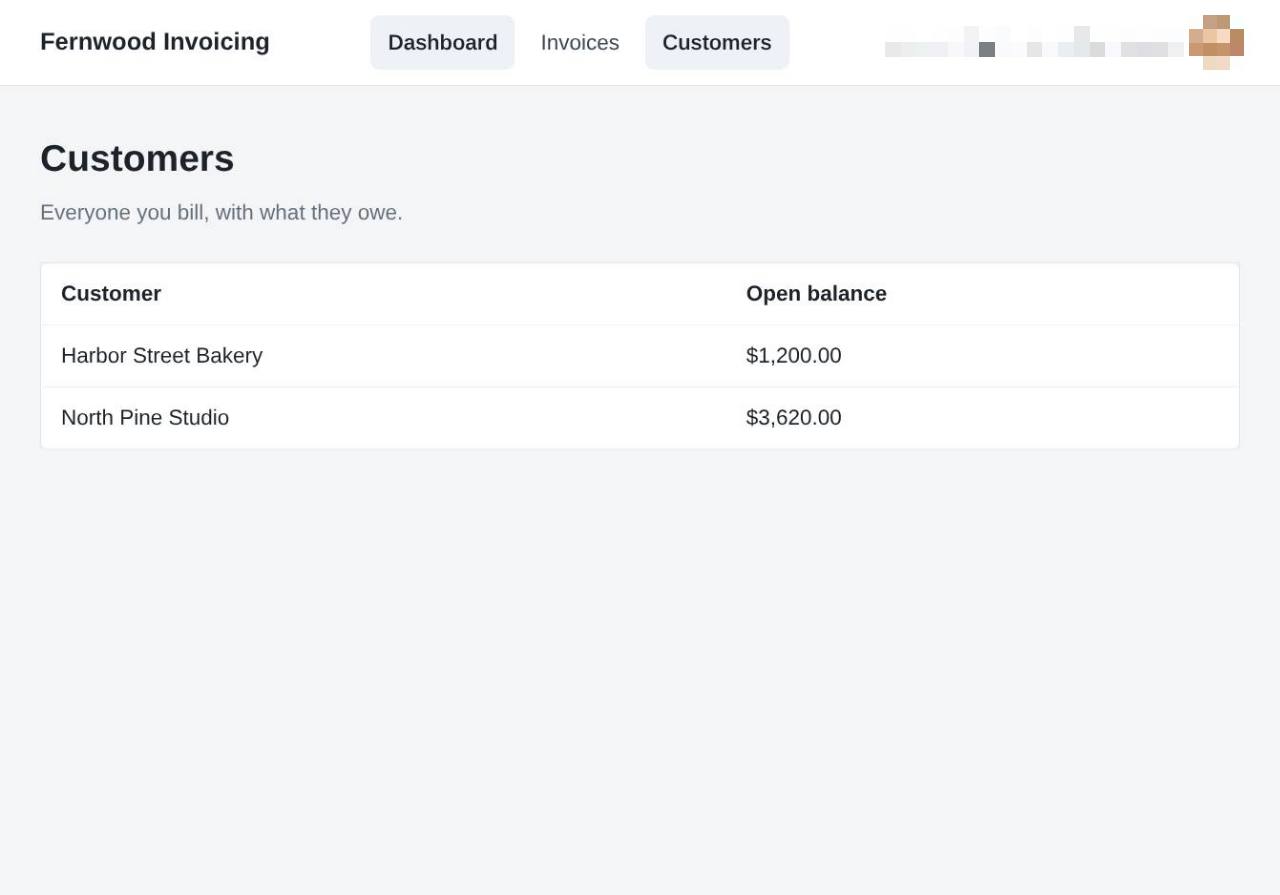
1.View your customers
Select Customers to display a list of all your clients and their current outstanding balances.
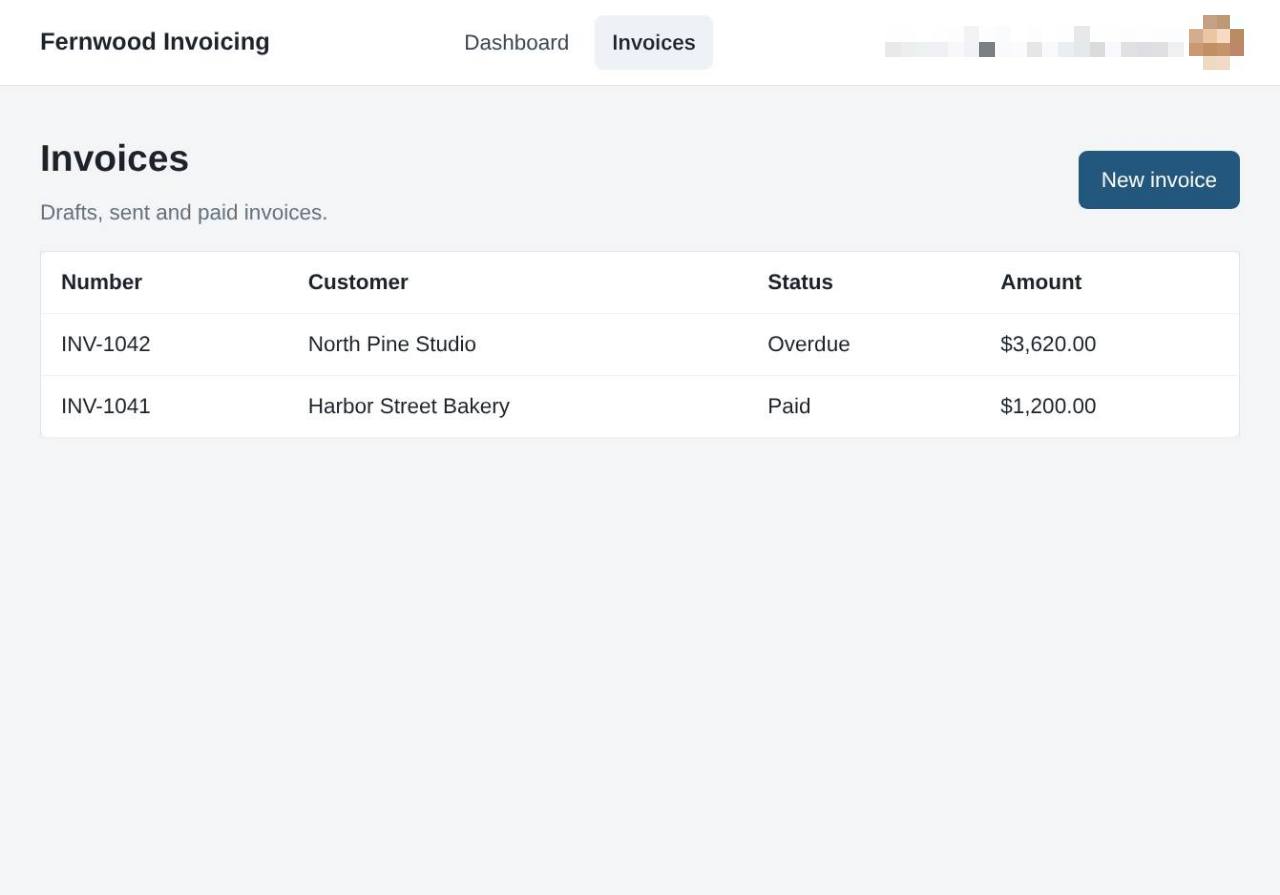
2.Open your invoice list
Select Invoices to view your list of drafts, sent, and paid invoices.
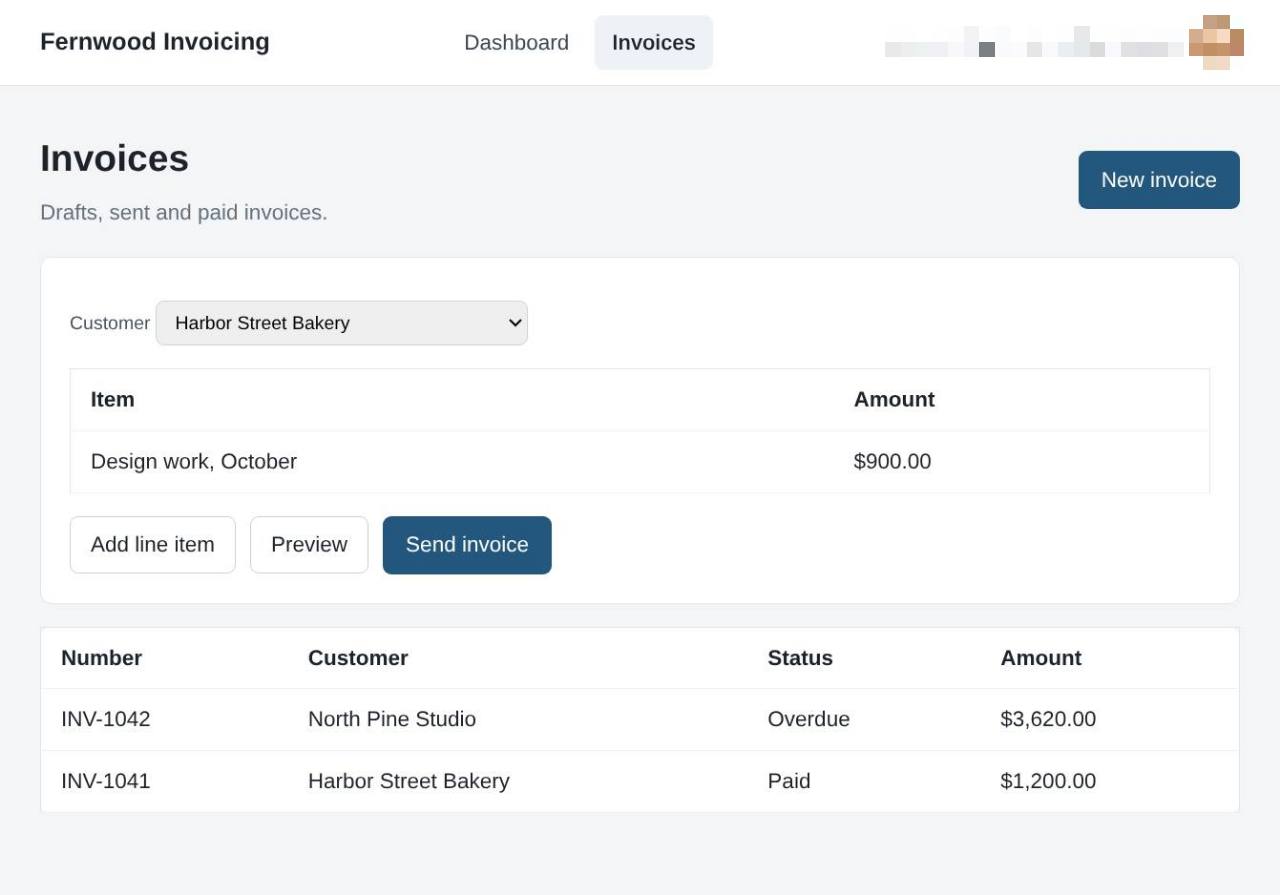
3.Create a new invoice
Select New invoice to open the draft editor. You will see a blank invoice ready for your customer details and line items.
4.Add a line item
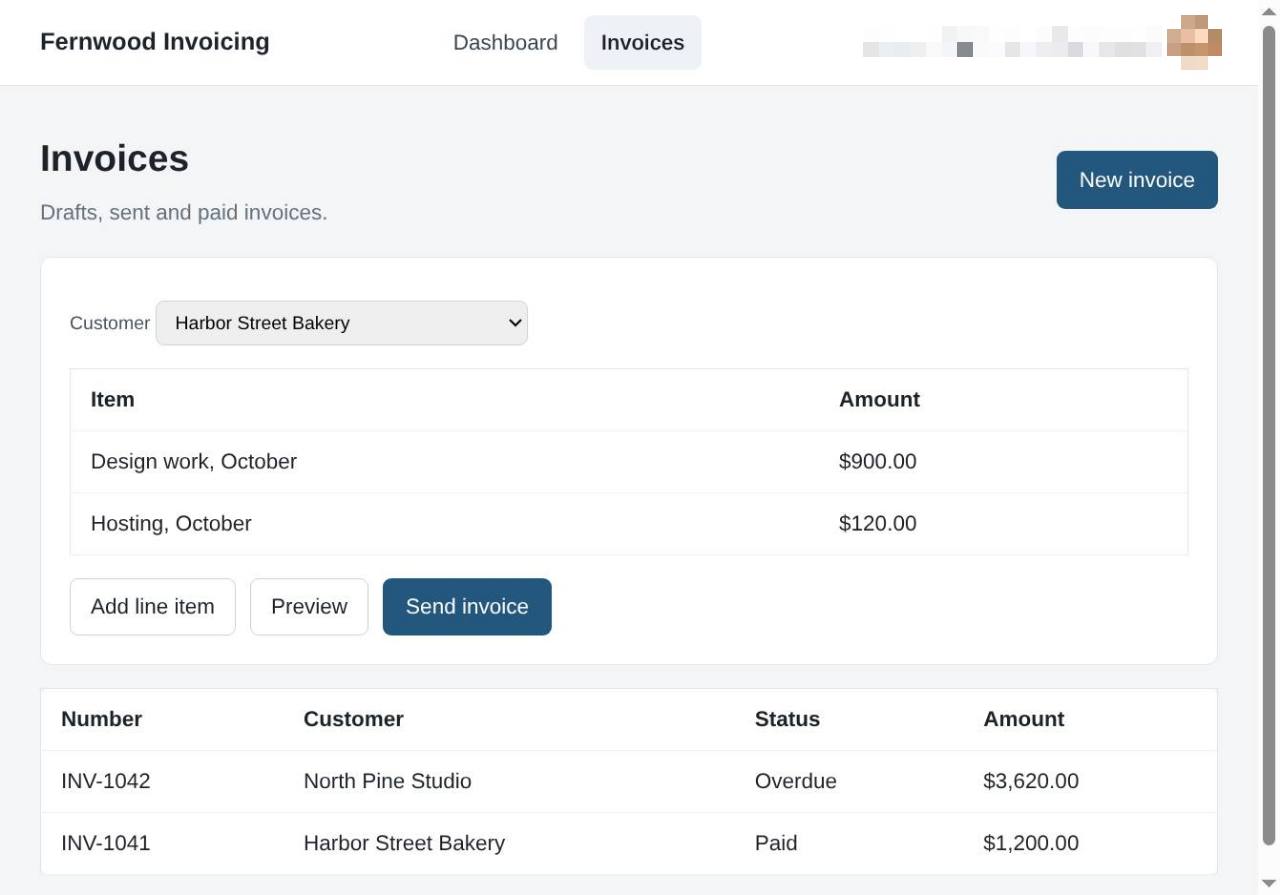
Click Add line item to include an additional product or service on your invoice.
5.Preview the invoice
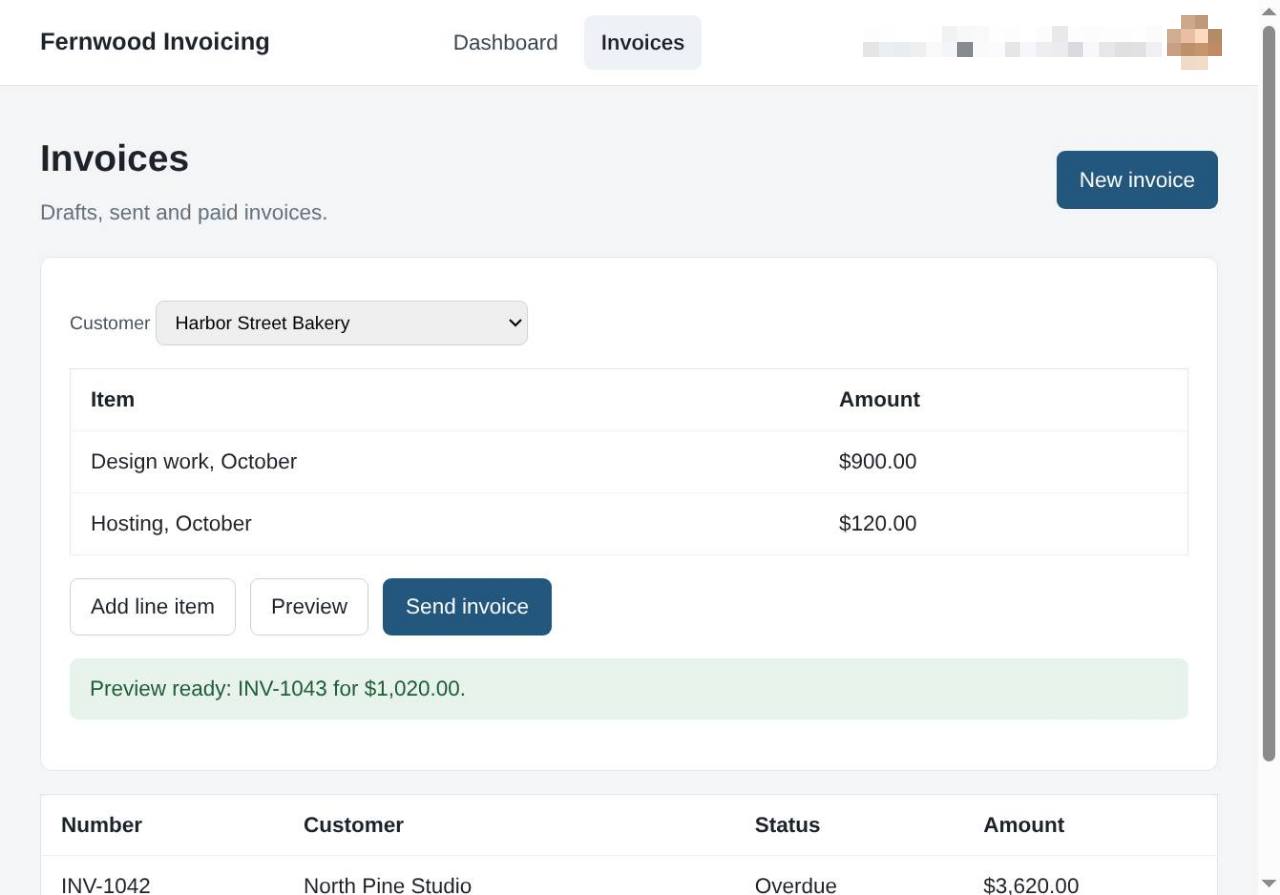
Select Preview to review the document details. You see a confirmation message indicating the invoice is ready to send.
6.Send the invoice
Select Send invoice. A message confirms the invoice was sent to your customer.